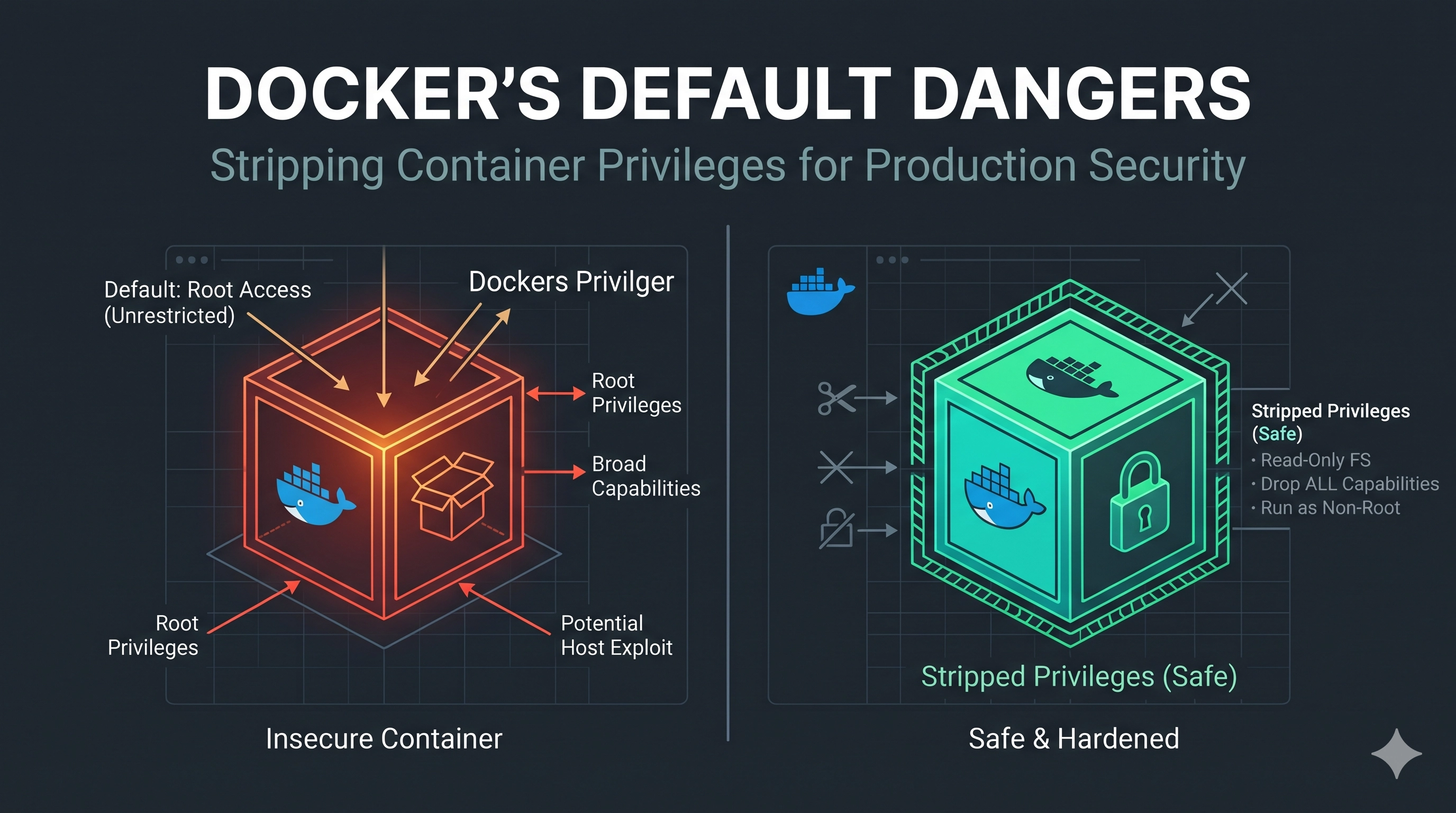
The Illusion of Isolation: Why Default Docker isn't Production-Ready
Docker revolutionized deployment, making it incredibly easy to package applications and run them consistently across environments. Yet, this ease often lulls engineers into a false sense of security. Out-of-the-box Docker containers, while providing process isolation, are far from hardened for production. Running a container with default settings can introduce significant security vulnerabilities, transforming a seemingly isolated environment into a potential launchpad for privilege escalation or system compromise. The subtle pain point here often emerges when a minor bug or misconfiguration in an application, when combined with overly permissive container settings, becomes a critical security incident.
Today, we'll dive into three fundamental techniques to strip unnecessary privileges from your Docker containers, moving them from development convenience to production-grade security.
1. The Root Problem: Running as Root
By default, processes inside a Docker container often run as the root user. This is a significant security risk. If an attacker manages to exploit a vulnerability within your application, they gain control of a process running with full root privileges inside the container. While Docker provides namespaces to isolate this root from the host's root, a compromised root process inside the container significantly increases the attack surface and the potential for container escapes or lateral movement.
The Fix: Dedicated Non-Root Users
The most straightforward defense is to run your application processes as a dedicated, unprivileged user. This follows the principle of least privilege.
# In your Dockerfile:
FROM alpine:latest

# Create a non-root user and group
RUN addgroup -S appgroup && adduser -S appuser -G appgroup

# Copy your application code
COPY --chown=appuser:appgroup . /app

# Change to the non-root user
USER appuser

# Define the entrypoint for your application
WORKDIR /app
CMD ["node", "server.js"] # Or your application's entrypoint
Important Consideration: Ensure all necessary files and directories that your application needs to access (e.g., logs, configuration, temporary files) are owned or writable by the appuser. Failure to do so will lead to runtime errors, often manifesting as permission denied issues.
2. The Mutable Trap: Enforcing Read-Only Root Filesystems
Another common pitfall is allowing containers to write anywhere within their filesystem by default. While convenient for development and debugging, this mutability can be a liability in production. An attacker who gains access can modify application binaries, plant malware, or store persistent data, making incident response and forensics significantly harder.
The Fix: Mount a Read-Only Root Filesystem
Docker allows you to run containers with a read-only root filesystem using the --read-only flag. This ensures that the main filesystem of the container cannot be modified after creation.
docker run -d --read-only \
  -v /var/log/my-app:/app/logs \ # Mount a volume for logs or persistent data
  -p 8080:8080 my-app:latest
Important Consideration: When using --read-only, any attempts by the application to write to paths outside of explicitly mounted volumes (like /tmp or your application's working directory if it's not a volume) will fail. You'll need to identify all write operations and either redirect them to volumes or configure tmpfs mounts for temporary files.
3. The Over-Privileged Process: Dropping Linux Capabilities
Even if you run your container as a non-root user, and with a read-only filesystem, processes inside still inherit a set of Linux capabilities from the Docker daemon's default configuration. These capabilities grant specific kernel-level privileges. For instance, CAP_NET_RAW allows raw socket operations, and CAP_SYS_ADMIN is extremely powerful, often likened to root privileges. Most applications do not need the full set of default capabilities.
The Fix: Explicitly Drop Unnecessary Capabilities
The best practice is to drop all capabilities by default and explicitly add back only those that are absolutely necessary. This significantly reduces the attack surface if a process is compromised.
docker run -d \
  --cap-drop ALL \ # Drop all default capabilities
  --cap-add NET_BIND_SERVICE \ # Add back specific capabilities needed (e.g., bind to low ports)
  --cap-add CHOWN \ # If the application needs to change file ownership
  my-app:latest
Important Consideration: Identifying the exact capabilities an application needs can be challenging. Common capabilities include NET_BIND_SERVICE (for binding to privileged ports < 1024), CHOWN (for changing file ownership), or DAC_OVERRIDE (for bypassing file read/write/execute permissions). You might need to experiment and test thoroughly to find the minimal set required. Tools like capsh can help inspect capabilities.
Key Takeaways
- Run as Non-Root: Always create a dedicated unprivileged user in your Dockerfile and run your application as this user to mitigate the impact of container compromise.
- Read-Only Filesystems: Employ
--read-onlyfor production containers and explicitly mount volumes ortmpfsfor any necessary write operations, enhancing immutability and forensic clarity. - Drop Capabilities: Embrace the principle of least privilege by dropping all default Linux capabilities (
--cap-drop ALL) and only adding back the minimum required set (--cap-add ...), drastically reducing the kernel-level attack surface.
Be the first to leave a comment.
Leave a comment